Hardwiring a new telephone or broadband connection point is an excellent way to improve your network reliability. Many people need a stable, wired connection for a home office, but spotty Wi-Fi often falls short. Unfortunately, improper wiring jobs can quickly degrade your signal quality.
Tampering with telecom infrastructure without proper knowledge carries massive risks. Incorrect setups cause dropped broadband connections and severe static noise. You might even violate strict compliance rules set by telecom providers like Openreach.
We will guide you through a fully compliant, technical framework for safely wiring a new point. You will learn the exact wiring color codes, the specific tooling you need, and practical troubleshooting protocols. By following these steps, you can achieve a flawless, high-speed connection every time.
Key Takeaways
Compliance First: Never modify the main incoming network line; only wire an extension from the consumer-facing front plate of a Master Socket.
Essential Pins: Modern UK telephone extensions only require two wires (Pins 2 and 5) to function, minimizing broadband interference.
Correct Hardware: Using proper CW1308 telecom cable and an IDC punch-down tool is non-negotiable for a stable connection.
Broadband Optimization: Disconnecting the "bell wire" (Pin 3) on older setups can significantly improve ADSL/VDSL broadband speeds.
1. Compliance and Setup: Master Sockets vs. Extension Sockets
The Legal Boundary
Before you strip a single wire, you must understand the legal demarcation point. In the UK, the main telecom socket entering your property is usually an NTE5 master socket. This physical unit belongs entirely to your telecom provider. You cannot legally tamper with the main incoming drop wire or the hidden wiring behind the main backplate. Doing so violates network terms. Your DIY modifications are strictly limited to the removable lower front plate of the NTE5 unit.
Socket Classification
You must accurately identify your socket hardware. A Master Socket contains active internal components. It features a ringing capacitor to trigger older telephone bells and a surge protector to shield your equipment from line spikes. Providers install these at the property entrance. Conversely, a Secondary or Extension Socket acts as a basic pass-through device. It contains no internal capacitors. It simply extends the existing connection from the master unit to another room.
Risk Assessment
Ignoring these physical boundaries carries serious consequences. If you damage the main network side of the installation, your telecom provider will detect the fault. They will send an engineer to repair the damage. You will receive a substantial call-out fee and potential fines. Unauthorized tampering also voids your service warranties. In worst-case scenarios, a short circuit on the main line results in a total loss of telephone and broadband service for your property.
2. Evaluating and Selecting Your Hardware
Cable Selection
Your choice of cable dictates the quality of your internet connection. Always specify solid-core CW1308 telephone cable. Alternatively, you can use solid-core Cat5e or Cat6 twisted-pair Ethernet cable. Twisted pairs actively reject electromagnetic interference. We strongly warn against using cheap, stranded patch cables. Stranded copper does not secure properly inside punch-down terminals and frequently causes intermittent line drops.
Choosing the Right Socket
Many homeowners accidentally purchase the wrong faceplate for this project. You must buy a standard extension socket (also labeled as a Secondary socket). Do not buy another Master socket. Wiring a second Master socket into the same line doubles the capacitance. This excess capacitance cripples broadband frequencies and severely degrades your download speeds.
Clarifying Socket Types
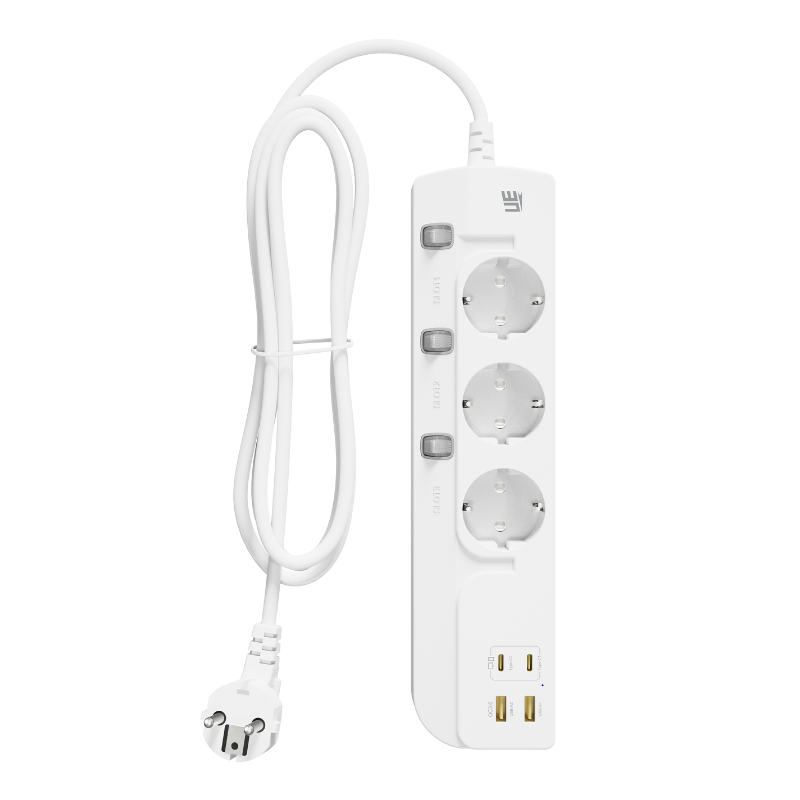
Modern homes integrate dozens of different wall plates. When planning your office layout, separate your telecom runs from your power runs. Telecom faceplates handle highly sensitive, low-voltage data. They operate completely differently from mains power solutions like a USB extension socket. Telecom connections require dedicated data lines. You must isolate them entirely from electrical power circuits to prevent cross-talk and noise injection.
Tooling Requirements
Professional results require professional tools. Do not skip this step. You need:
An IDC (Insulation Displacement Connector) punch-down tool.
Precision wire strippers.
Flush cutters for neat trimming.
Many beginners attempt to force wires into the terminals using a small flathead screwdriver. This is a massive mistake. A screwdriver crushes the delicate brass contacts inside the terminal block. It compromises the connection and creates latent faults. An IDC tool pushes the wire to the exact correct depth while safely cutting the excess tail.
3. The Standard Telephone Wiring Color Code and Pinout
The Core Configuration (Pins 1-6)
UK telecom faceplates feature six numbered IDC terminals. You must map your wires exactly to this standard configuration to maintain polarity and function.
Pin 2: Blue wire with White bands. This handles Audio and Data transmission.
Pin 5: White wire with Blue bands. This completes the Audio/Data circuit.
Pin 3: Orange wire with White bands. This is the traditional "Bell wire". Note: We discourage connecting this pin for modern broadband setups.
Pin 4: White wire with Orange bands. This terminal usually remains unused or serves as an earth connection in commercial setups.
The "Bell Wire" Problem
Historically, Pin 3 carried a ringing current to older rotary telephones. Today, modern phones generate their own ringing tones. Connecting Pin 3 now actively harms your network. The bell wire acts as a giant radio antenna throughout your house. It picks up electromagnetic interference (EMI) from microwaves, dimmer switches, and fluorescent lights. Disconnecting Pin 3 stops this interference. This simple tweak often drastically improves your router sync speeds.
Alternative Cable Colors
If you decide to use modern Cat5e networking cable instead of CW1308, the color coding changes. Use the following translation matrix to avoid polarity errors.
Terminal Pin Number
Standard CW1308 Color
Alternative Cat5e/Cat6 Color
Function
Pin 2
Blue with White bands
Solid Blue
Audio / VDSL Data Line A
Pin 5
White with Blue bands
White with Blue stripe
Audio / VDSL Data Line B
Pin 3 (Optional)
Orange with White bands
Solid Orange
Bell Ringing Current (Avoid)
Pin 4 (Unused)
White with Orange bands
White with Orange stripe
Earth / Spare
4. Step-by-Step Installation Process
Step 1: Preparation & Safety
First, isolate your working circuit. Locate your main NTE5 master socket. Carefully unscrew the lower front faceplate and pull it away. This automatically disconnects your internal house wiring from the external provider network. You are now completely safe to work on the internal extension lines without risking short circuits on the live exchange line.
Step 2: Cable Routing
Route your new cable from the master socket to your desired location. Apply strict best practices here. Do not run telecom cables parallel to mains AC power lines. Parallel runs induce alternating current noise onto your data lines. If you must cross a power cable, do so at a strict 90-degree angle. Secure the cable to the skirting board using proper rounded cable clips. Avoid stapling the cable, as staples easily crush the internal twisted pairs.
Step 3: Stripping the Sheath
Carefully prepare the cable ends. Use your wire strippers to remove about 50mm (2 inches) of the outer PVC jacket. You must not nick the delicate inner copper wires. Inspect the exposed wires closely. Do not strip the colored insulation off the individual inner wires. The IDC terminals are designed to bite through this plastic coating automatically. Stripping them manually causes loose connections and corrosion.
Step 4: Punching Down
Now, map your wires to the faceplate. Position the Blue/White wire over Pin 2. Position the White/Blue wire over Pin 5. Push them gently into the slots. Take your IDC punch-down tool. Position it perfectly vertical over the terminal block. Press down firmly until you hear a sharp click. The tool secures the wire into the V-shaped brass blades and trims the excess wire simultaneously. You have now successfully terminated the extension socket.
Step 5: Master Socket Connection
Take the other end of your cable back to the master socket. Look at the back of the removable front plate you unscrewed earlier. You will see a matching set of IDC terminals numbered 1 through 6. Repeat the exact same punch-down process here. Connect Pin 2 to Pin 2, and Pin 5 to Pin 5. Ensure the connections sit flush and secure.
5. Testing, Troubleshooting, and Quality Assurance
Verification Testing
Do not screw the faceplates back onto the wall just yet. You must verify the connection first. Plug a standard analog telephone into your newly wired secondary socket. Listen closely for a clear, uninterrupted dial tone. Next, plug in your broadband router. Log into your router's admin interface. Check the line-sync speeds and compare them to the speeds you received at the master socket. They should match almost exactly.
Symptom & Diagnosis Framework
If things go wrong, stay calm. Use this straightforward troubleshooting chart to diagnose the most common wiring faults.
Observed Symptom
Probable Cause
Corrective Action
Dead Line (No Dial Tone)
Wires on Pins 2 and 5 are poorly punched down or reversed.
Re-seat wires with the IDC tool. Check color mapping match at both ends.
Phone Rings Once and Stops
A short circuit exists between Pin 2 and Pin 5.
Inspect cable for staple damage or stray copper touching adjacent pins.
Loud Static / Crackling
Loose terminal connection or moisture inside the faceplate.
Punch down all wires again. Ensure no stripped copper is exposed outside the pin.
Broadband Drops Frequently
EMI interference from the Bell Wire or parallel mains AC cable.
Disconnect the wire from Pin 3 entirely. Reroute cable away from power lines.
When to Call a Professional
DIY installations save money, but you must know your limits. You should immediately abandon the project and call your service provider if you notice physical damage on the main incoming side of the NTE5 socket. Furthermore, if you hear crackling noise when plugging directly into the master test socket (behind the front plate), the fault lies outside your property. Only an ISP engineer can legally climb the poles or dig up the street to fix an external line fault.
Conclusion
Wiring an internal communication point demands precision. You must adhere strictly to the proper standards. By utilizing the correct CW1308 cable, securing wires with a dedicated IDC tool, and limiting your connections to Pins 2 and 5, you eliminate noise and maximize broadband performance. Remember, modifying the main network boundary is strictly prohibited. Always run your lines from the consumer faceplate.
We strongly recommend testing your baseline internet speed at the main socket before starting. If your line speed is inherently terrible at the source, adding more internal wiring will not solve the issue. It will only add distance to a struggling signal.
When you are ready to upgrade your property, gather the correct materials first. Invest in a proper IDC punch-down tool. Source high-quality CW1308 copper cable. Finally, ensure you buy a reliable standard extension socket from a certified supplier to guarantee long-term network stability.
FAQ
Q: Can I use Ethernet (Cat5e/Cat6) cable for a telephone extension?
A: Yes. Twisted pair Ethernet cable is excellent for telecom extensions. The tight twisting of the inner wires actively rejects electromagnetic noise. You just need to map the solid Blue wire to Pin 2, and the White/Blue striped wire to Pin 5. Cut away the unused pairs neatly so they do not cause short circuits inside the backbox.
Q: Do I need a Master Socket or a Secondary Socket for an extension?
A: You must always use a Secondary (Extension) socket. Master sockets contain internal capacitors meant only for the incoming provider line. If you chain multiple master sockets together, you multiply the capacitance on the circuit. This severely degrades modern VDSL broadband signals and drastically reduces your internet download speeds.
Q: Is it illegal to move my main BT master socket?
A: Yes, it violates your provider terms of service. The incoming drop wire and the main backplate of the master socket belong to the telecom network (e.g., Openreach). You cannot legally touch them. You are only permitted to run secondary wiring from the removable consumer front plate.
Q: Why is my broadband slower on the extension socket?
A: Speed drops usually stem from poor connections or interference. If you forced the wires in with a screwdriver, the connection might be weak. Additionally, if you connected the Pin 3 "bell wire," it likely acts as an antenna pulling in electrical noise. Finally, extremely long cable runs naturally attenuate high-frequency broadband signals.
UE Electronic is a power supplier integrating R&D, production and sales. We maintain a leading level in extension cord and GaN charger.We are committed to becoming a global power supplier.