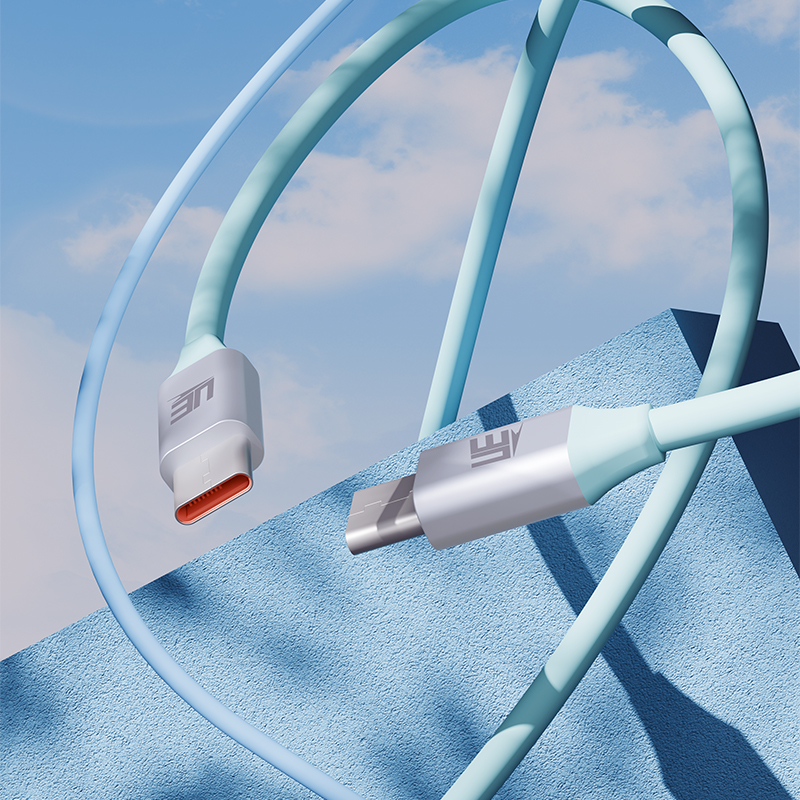
The transition away from legacy USB standards has ushered in a highly fragmented hardware ecosystem. Today, simply matching a connector shape to a physical port does not guarantee your expected performance. Purchasing the wrong cable configuration often leads to severe bottlenecks for both everyday consumers and professionals. You might experience agonizingly slow data transfers during crucial system backups. You could face artificially capped charging speeds right when you need power the most. Even worse, you risk catastrophic hardware damage due to mismatched power draw between modern and legacy devices. To solve this problem, you need a reliable, technical, and use-case-driven framework. We will help you evaluate and select the correct connection based on specific power delivery requirements. You will learn how to match your choices to required data bandwidth and existing legacy hardware constraints. This knowledge ensures maximum efficiency and protects your expensive electronics from electrical harm.
Key Takeaways
Physical Shape ≠ Protocol: A USB-C connector only dictates the physical port, not the underlying speed (USB 2.0 vs. 3.2) or charging protocol.
Power Limitations: USB-A to Type C cables are generally limited by older charging protocols, whereas USB-C to USB-C cables are required for true USB Power Delivery (PD).
Safety Imperatives: Legacy USB-A to C cables require a 56kΩ pull-up resistor to prevent drawing too much power and frying older host devices.
The "One Cable" Myth: There is no universal cable; purchasing decisions must be mapped to specific device combinations and performance goals.
The Core Difference: Form Factor vs. Underlying Architecture
We must first define the core physical and architectural differences separating these standards. A USB-A to Type C cable serves as a crucial hardware bridge. It connects older legacy hosts to modern devices. Think of older laptops, standard wall bricks, or vehicle power ports. You often plug these into newer smartphones or wireless earbuds. However, this bridge has a strict capability limit. It remains inherently limited by the older USB-A architecture on one end. Standard USB-A ports typically rely on a basic 4-pin design. Even upgraded USB 3.0 Type-A variants only add a few extra pins for data. They simply cannot match modern power and data standards.
Conversely, we define the modern standard entirely differently. A symmetrical connection connects modern hosts directly to modern devices. This standard features a highly sophisticated 24-pin design on both ends. These extra pins allow for truly bidirectional power flow. They also support incredibly complex data protocols. For example, DisplayPort Alt Mode relies entirely on these additional pins to function. You cannot route complex video signals through a standard legacy port. The internal wiring defines the true capability, not just the metal shell you see. This internal architecture explains why identical-looking cords perform vastly differently in real-world applications.
Power Delivery and Charging: Why Your "Fast Charging Data Cable" Might Be Underperforming
Many users wonder why their devices charge slowly despite using seemingly capable hardware. The answer usually lies in the legacy architectural bottleneck. Legacy A-ports are generally capped at 12W to 18W. They achieve this using older Quick Charge protocols or proprietary brand standards. Crucially, they cannot support official USB Power Delivery (USB-PD). The USB-PD standard requires a dedicated communication channel. Older rectangular ports simply lack this specific digital channel.
Unlocking true USB-PD requires a symmetrical modern connection. This becomes absolutely essential for high-draw devices. Laptops and modern tablets demand significant wattage to operate properly under heavy loads. Consider the implementation reality of high-wattage charging. To achieve charging speeds above 60W, the cord must contain an E-marker chip. This Electronic Marker acts as a digital negotiator.
The chip announces the maximum voltage limits.
The host device reads this data before sending power.
The charger adjusts its output dynamically to prevent overheating.
The entire system continually monitors the thermal load.
If you utilize a 100W USB cable or a 240W Extended Power Range cord, the E-marker acts as a digital bouncer. It ensures neither device draws more power than it can safely handle. There is a significant caveat to remember here. Many cheap products lack proper E-marker chips. This omission leads to silent power throttling. Your laptop might take ten hours to charge instead of two. The system protects itself by defaulting to a slow 60W trickle charge.
Data Transfer and Bandwidth: Moving Beyond USB 2.0
Evaluating data speeds reveals a common industry trap. Many budget cords are wired strictly for charging purposes. This applies to both legacy bridge cords and symmetrical modern cords. Manufacturers limit data transfer to ancient USB 2.0 speeds to save money. That means you get a maximum bandwidth of 480 Mbps. Moving large video files over this connection feels painfully slow. A high-speed fast charging data cable must explicitly state its compatibility. Look for USB 3.1, 3.2, or USB4 labels on the packaging. These advanced standards support speeds ranging from 5 Gbps to an astounding 40 Gbps.
We can verify true data capabilities using these simple steps:
Inspect the physical connector for SuperSpeed (SS) painted logos.
Check the manufacturer specifications for specific gigabit ratings.
Test the connection using an external NVMe solid-state drive.
Verify the active connection speed in your computer's system report.
Video and display output capabilities add another layer of complexity. An older legacy cord cannot transmit native video signals. The architecture simply lacks the necessary bandwidth and pin configuration. A fully symmetrical connection is mandatory for connecting to external monitors. It utilizes DisplayPort Alt Mode to carry high-resolution video streams. It also supports Thunderbolt protocols for daisy-chaining multiple high-resolution displays. You must use the correct internal wiring for external displays to function properly.
Hardware Safety: The 56k Ohm Resistor Rule
Hardware safety remains the most overlooked aspect of digital connectivity. We must understand the severe risk of legacy charging. Modern electronics are designed to draw up to 3 Amps natively. Legacy A-ports are often only designed to output 1.5A or 2.4A safely. They lack the digital communication channels required to say "stop."
Imagine a modern smartphone attempting to pull 3 Amps from a legacy port. The older port cannot defend itself against this high electrical demand. It can overheat rapidly. This thermal overload can permanently damage the power brick. It can even fry older PC motherboards if connected to a front-panel port. The USB Implementers Forum recognized this massive fire hazard early on.
The industry introduced a standardized solution for this exact problem. Compliant legacy cords must feature a 56kΩ pull-up resistor. This tiny electronic component plays a massive role in hardware safety. It physically signals the modern device to limit its power draw. The modern device recognizes the resistor immediately. It then restricts itself to a safe electrical level. This lower level remains fully compatible with legacy hardware limits. You must avoid cheap, uncertified cords entirely. Counterfeit manufacturers often skip this vital resistor to save pennies during manufacturing. Using them puts your expensive host hardware at extreme risk.
Decision Framework: USB-C to USB-C vs USB-A to USB-C
Choosing the right connection requires analyzing your specific daily workflow. You must evaluate the USB-C to USB-C vs USB-A to USB-C debate objectively. Neither option is universally superior across all possible scenarios. You need to align your purchase with your hardware reality.
When should you shortlist the older legacy style?
Connecting peripherals represents the most common use case. Keyboards, mice, and basic audio interfaces work perfectly well here. You can connect them to older desktop towers without any performance loss. Charging low-draw devices is another excellent application. Smartwatches and e-readers require minimal wattage. Use your existing standard wall chargers or legacy airplane ports safely. Finally, consider situations prioritizing extreme durability over data speed. Live sound setups often route connections across busy stages. Technicians frequently replace crushed cords. Cheaper legacy cords make absolute financial sense in these rugged environments.
When should you shortlist the modern symmetrical style?
Powering heavy electronics demands modern architecture. Laptops, docking stations, and fast-charging flagship smartphones require true Power Delivery. Transferring massive files also requires intense bandwidth. Video editors and photographers need modern speeds between external SSDs and modern workstations. Lastly, outputting video requires modern pins. Connecting your laptop to modern monitors requires DisplayPort Alt Mode support.
Let us review the technical differences clearly to aid your final decision.
Cable Capability Comparison Chart
Feature / Capability
Legacy Bridge (A to C)
Symmetrical (C to C)
Maximum Charging Speed
Typically 12W - 18W (Quick Charge)
Up to 240W (with E-Marker chip)
USB Power Delivery (PD)
Not Supported natively
Fully Supported (requires compliant charger)
Data Transfer Limit
Up to 10 Gbps (rarely, usually 480 Mbps)
Up to 40 Gbps (USB4 / Thunderbolt 4)
Video Output (Alt Mode)
Incompatible
Compatible (requires full-featured wiring)
Primary Safety Mechanism
56kΩ pull-up resistor (Mandatory)
Digital E-Marker chip negotiation
Conclusion
Connector type dictates physical compatibility, but internal wiring dictates actual capability. The integrated chips and pin layouts truly determine what your setup can achieve. You cannot rely on physical shape alone when assessing overall performance. A poor choice leads to severe thermal throttling or data bottlenecks.
Audit your primary power brick and host device ports before purchasing anything new. Check their exact specifications and maximum power ratings. If your workflow requires high-speed data transfers or laptop charging, take action today. Upgrade your primary power brick to a modern standard. Then, invest in a certified, E-marked USB-C charging cable. This choice ensures maximum charging efficiency. It also protects your expensive hardware from accidental electrical damage. Always match your final purchase directly to your specific technical requirements.
FAQ
Q: Can a USB-A to USB-C cable support true Power Delivery (PD)?
A: No. The USB-PD standard requires USB-C connectors on both ends for proper power negotiation.
Q: How do I know if I need a 100W USB cable?
A: Check your device's power requirements. Laptops (e.g., MacBook Pro, Dell XPS) typically require 60W to 100W. Using a standard 60W cable on a 100W device will safely charge it, but at a slower, throttled rate.
Q: Are all USB-C charging cables safe to use with any device?
A: Not inherently. While C-to-C cables use digital handshakes to negotiate safe power, cheap A-to-C cables lacking a 56kΩ resistor can damage older USB-A ports by drawing too much current. Always buy from compliant, certified brands.
UE Electronic is a power supplier integrating R&D, production and sales. We maintain a leading level in extension cord and GaN charger.We are committed to becoming a global power supplier.